 AI TL;DR
Too lazy to read? Summarize this post with:
Blog Post Publish Date: 2024/04/28
fzf: Life is Too Short for Pipe Grep#
This blog post explains why fzf, a command-line fuzzy finder, replaced Ctrl + R, find, and command | grep in my terminal. It also shows how to configure its Zsh widgets for searching history, files, and directories, with live previews.
Searching in the Terminal Is Tedious#
Searching in the terminal is something you do all the time, and it gets boring fast. Three cases show the problem: searching command history, searching files and directories, and searching command output.
To recall a command, most people press the up and down arrows. Most shells also have an interactive search on Ctrl + R. In Zsh it’s reverse-i-search. It works, but you have to press the shortcut again to see each older match, which is painful when you ran the same command many times with different arguments.
To find a file or directory, the usual tool is $ find. It works well when you know exactly what you’re looking for, but not when you only remember part of the path.
To find something in a command’s output, the usual method is $ command | grep. It has the same problem as find: depending on the case, you run grep several times until you find what you need.
That routine pushed me to look for a better way to search interactively.
Fuzzy Finders Are the Solution#
After a few days of research, I found fzf, a cross-platform fuzzy finder written in Go.
A fuzzy finder is a search tool that finds files, directories, or any other items even when you don’t remember their exact names. It uses fuzzy matching, so partial words, characters out of order, and typos still find the right result.
fzf filters a list as you type, so you don’t need $ command | grep anymore. It reads the output of any command for interactive searching. For example, $ kgp -A | fzf searches pods across a Kubernetes cluster (kgp is the kubectl get pods alias from the kubectl plugin I use in Zsh). fzf also ships shell widgets that search files, directories, and command history.
fzf has widgets for Fish, Bash, and Zsh. You can see them in github.com/junegunn/fzf/shell.
How to Configure fzf Widgets in Zsh#
First, install fzf. The installation section lists several options. Package managers can ship an old version, so I download the latest release from GitHub:
setopt INTERACTIVE_COMMENTS

# download the release (at the publish date of this post, the latest version was 0.50.0)
curl -L https://github.com/junegunn/fzf/releases/download/0.50.0/fzf-0.50.0-linux_amd64.tar.gz > fzf-0.50.0-linux_amd64.tar.gz

# uncompress the downloaded file to access the fzf binary
tar -xzvf fzf-0.50.0-linux_amd64.tar.gz

# check fzf binary execution
./fzf --help

# move the binary to a folder present in your path
mv fzf /usr/local/bin/
By default, fzf uses $ find to list files and directories. You can change that. I use fd, a faster and friendlier alternative to find:
# In Linux workstation with dnf package manager
dnf install fd-find

# In MacOs workstation with homebrew package manager
brew install fd
For file previews, I use bat, a cat clone with syntax highlighting:
# In Linux workstation with dnf package manager
dnf install bat

# In MacOs workstation with homebrew package manager
brew install bat
For directory previews, I use tree, which prints the contents of a directory recursively as a tree:
# In Linux workstation with dnf package manager
dnf install tree

# In MacOs workstation with homebrew package manager
brew install tree
Now load the widgets. Since version 0.48.0, fzf prints the setup code for a shell when you pass its name (--zsh, --fish, or --bash):
# Set up fzf key bindings and fuzzy completion (only available in 0.48.0 or later)
eval "$(fzf --zsh)"
Check that the key bindings were loaded:
bindkey -a | grep fzf

# output expected:
#
# "^R" fzf-history-widget  # CTRL + R: reverse history search
# "^T" fzf-file-widget     # CTRL + T: search files
# "^[c" fzf-cd-widget      # ALT  + C: search directories
Each widget reads its own environment variables, so you can tune it to your needs. This is how I configure them:
# fzf parameters used in all widgets - configure layout and wrapped the preview results (useful in large command rendering)
export FZF_DEFAULT_OPTS="--height 100% --layout reverse --preview-window=wrap"

# CTRL + R: put the selected history command in the preview window - "{}" will be replaced by item selected in fzf execution runtime
export FZF_CTRL_R_OPTS="--preview 'echo {}'"

# ALT + C: set "fd-find" as directory search engine instead of "find" and exclude "venv|virtualenv|.git" of the results during searching
export FZF_ALT_C_COMMAND="fd --type directory --exclude venv --exclude virtualenv --exclude .git"

# ALT + C: put the tree command output based on item selected
export FZF_ALT_C_OPTS="--preview 'tree -C {}'"

# CTRL + T: set "fd-find" as search engine instead of "find" and exclude "venv|virtualenv|.git" for the results
export FZF_CTRL_T_COMMAND="fd --exclude venv --exclude virtualenv --exclude .git"

# CTRL + T: put the file content if item select is a file, or put tree command output if item selected is directory
export FZF_CTRL_T_OPTS="--preview '[ -d {} ] && tree -C {} || bat --color=always --style=numbers {}'"
My full fzf configuration is in my
~/.zshrc: c-neto/ansible-configure-fedora
Results#
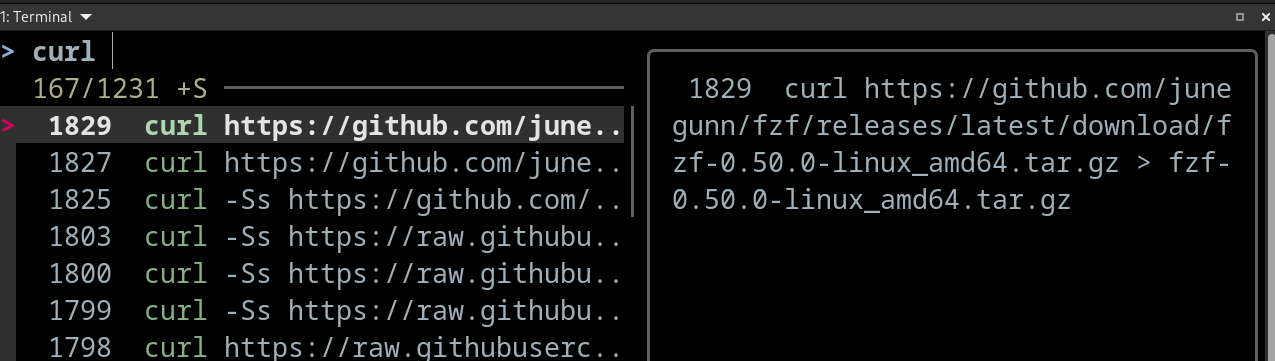
fzf-history-widget, on
Ctrl+R:
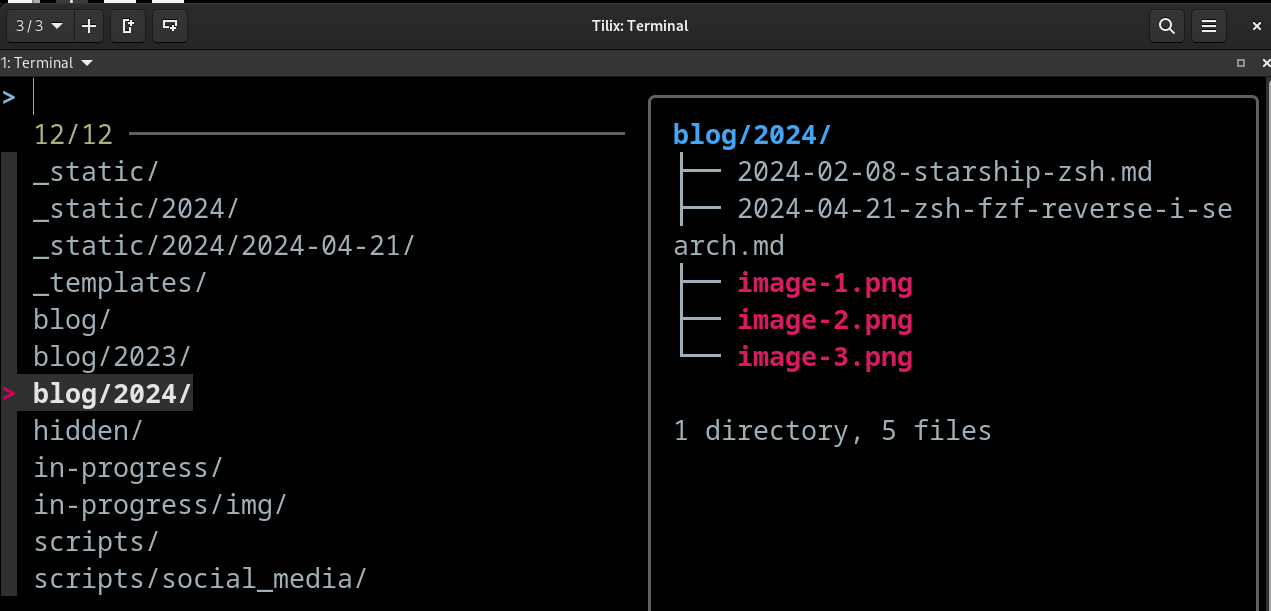
fzf-cd-widget, on
Alt+C:
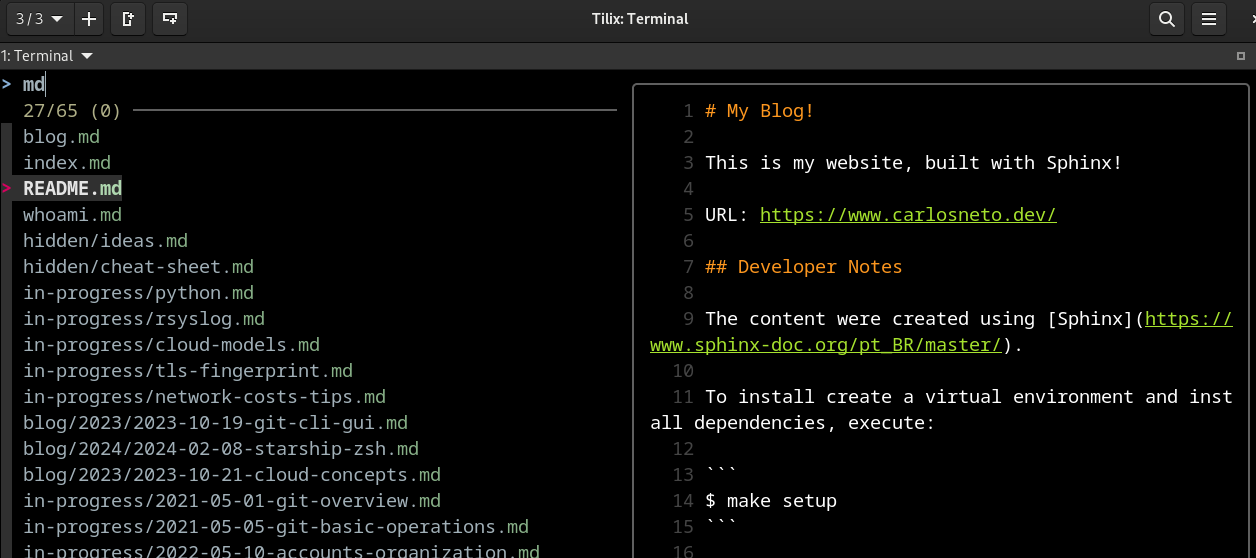
fzf-file-widget, on
Ctrl+T:
Searching pods in a Kubernetes cluster with
$ kgp -A | fzf:

Why I Recommend fzf#
My search for a better command history search gave me much more than I expected. fzf taught me what a fuzzy finder is and what it’s for. It isn’t limited to history: you can pipe anything into it and search it interactively.
I think it’s a much better choice than the default history search in Zsh and Bash. Fish already has a good one, but fzf still adds file and directory search with previews. The search is very fast, and the environment variables let you shape every widget to the way you work. It had more than 59K stars on GitHub when I wrote this post, and I think it earns them. I approve and recommend it!
fzf widgets are regular Zsh widgets bound to keys. If you want to understand how that works, or write your own, I explain it in Hacking Your Zsh Terminal with Custom Widgets.
Key Takeaways#
Ctrl+R,find, andcommand | grepall force you to know exactly what you’re looking for, or to repeat the search many times.A fuzzy finder matches partial words, characters out of order, and typos, and filters the list as you type.
fzf reads any command’s output, so
command | fzfreplaces mostcommand | grepsearches.eval "$(fzf --zsh)"(fzf 0.48.0 or later) loads three widgets:Ctrl+Rfor history,Ctrl+Tfor files, andAlt+Cfor directories.Use
fdas the search engine andbatandtreefor previews, configured through theFZF_*environment variables.
References#
I’m Carlos Neto, and this blog is where I share my experiences and open source contributions. More about me on my home page. If you have questions or a different approach, contact me on LinkedIn.